
How to Clear Browser Cookies to Resolve Website Issues
If you’re experiencing issues with a website, clearing your browser cookies can help. Below are the steps for four popular browsers: Google Chrome, Mozilla Firefox, Microsoft Edge, and Safari (both desktop and mobile versions).
Table of Contents
Follow these steps to clear cookies and cache across the most popular browsers:
Google Chrome
Desktop
- Open Chrome: Launch your Google Chrome browser.
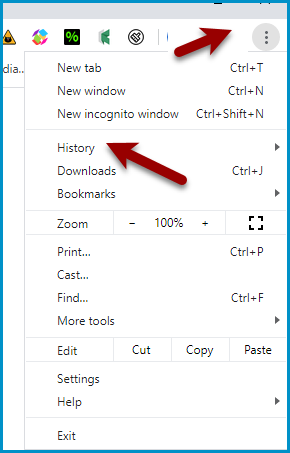
- Click the Menu in the upper right:
- Choose History
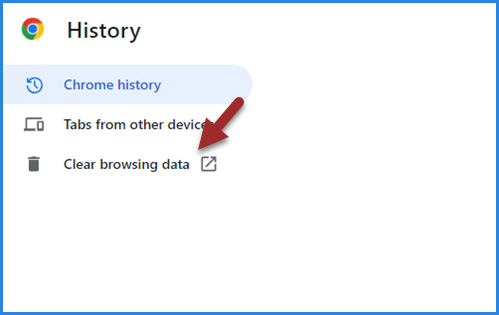
- Choose “Clear Browsing Data.”
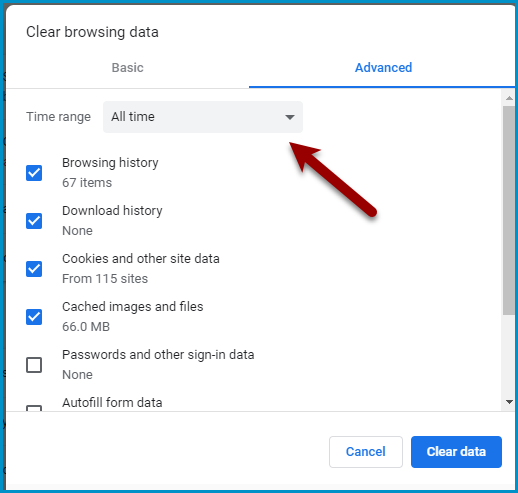
- The most effective setting is to clear all browsing history for All time and to clear **browsing history, download history, cached images **and files, and cookies.
- Close your browser and restart to see changes.
Mobile
- Open Chrome App: Tap the Chrome app icon.
- Access History:
- Tap the three dots in the bottom-right corner (iOS) or top-right corner (Android).
- Select History, then tap Clear browsing data.
- Choose Time Range: Select the desired time range.
- Select Data Types: Ensure that Cookies, site data and Cached images and files are checked.
Mozilla Firefox
Desktop
- Open Firefox: Launch your Firefox browser.
- Access Settings:
Click the three horizontal lines in the top-right corner. 3. Select Settings.
Privacy & Security: Navigate to the Privacy & Security panel.
Cookies and Site Data:
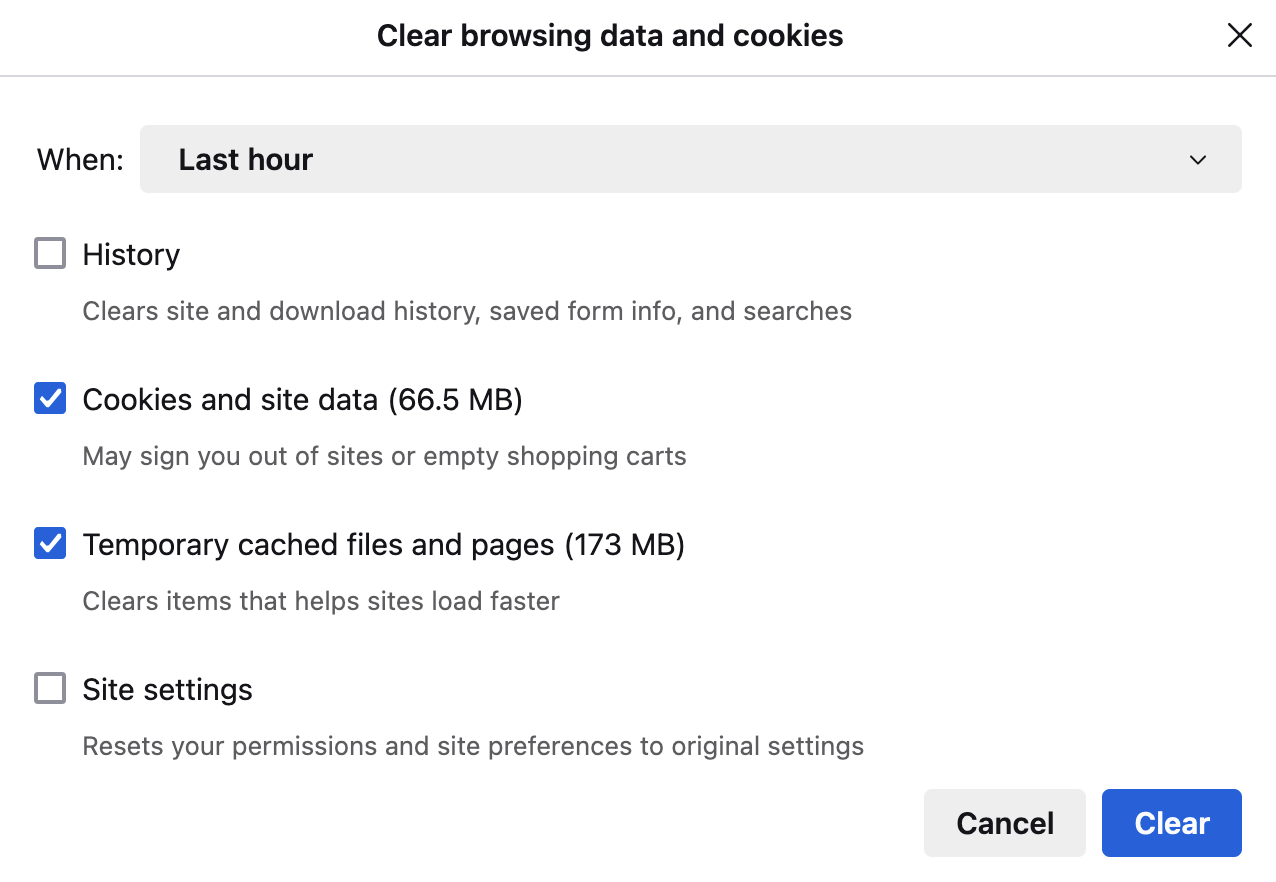
- Click on Clear Data under the Cookies and Site Data section.
- Ensure Cookies and Cached Web Content are checked.
- Click Clear.
Mobile
- Open Firefox App: Tap the Firefox app icon.
- Access Settings:
- Tap the three horizontal lines in the bottom-right corner (iOS) or top-right corner (Android).
- Select Settings.
- Clear Browsing Data:
- Tap Clear private data.
- Ensure Cookies and Cached images and files are checked.
- Tap Clear private data again to confirm.
Microsoft Edge
Desktop
- Open Edge: Launch Microsoft Edge.
- Access Settings:
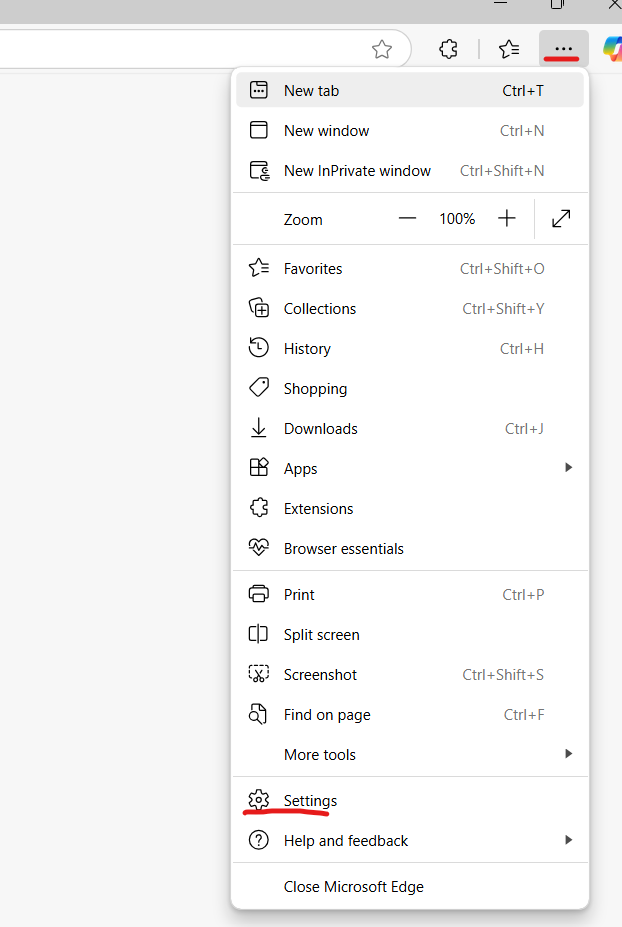
- Click on the three dots in the top-right corner.
- Select Settings.
- Privacy, Search, and Services: Navigate to the Privacy, search, and services section
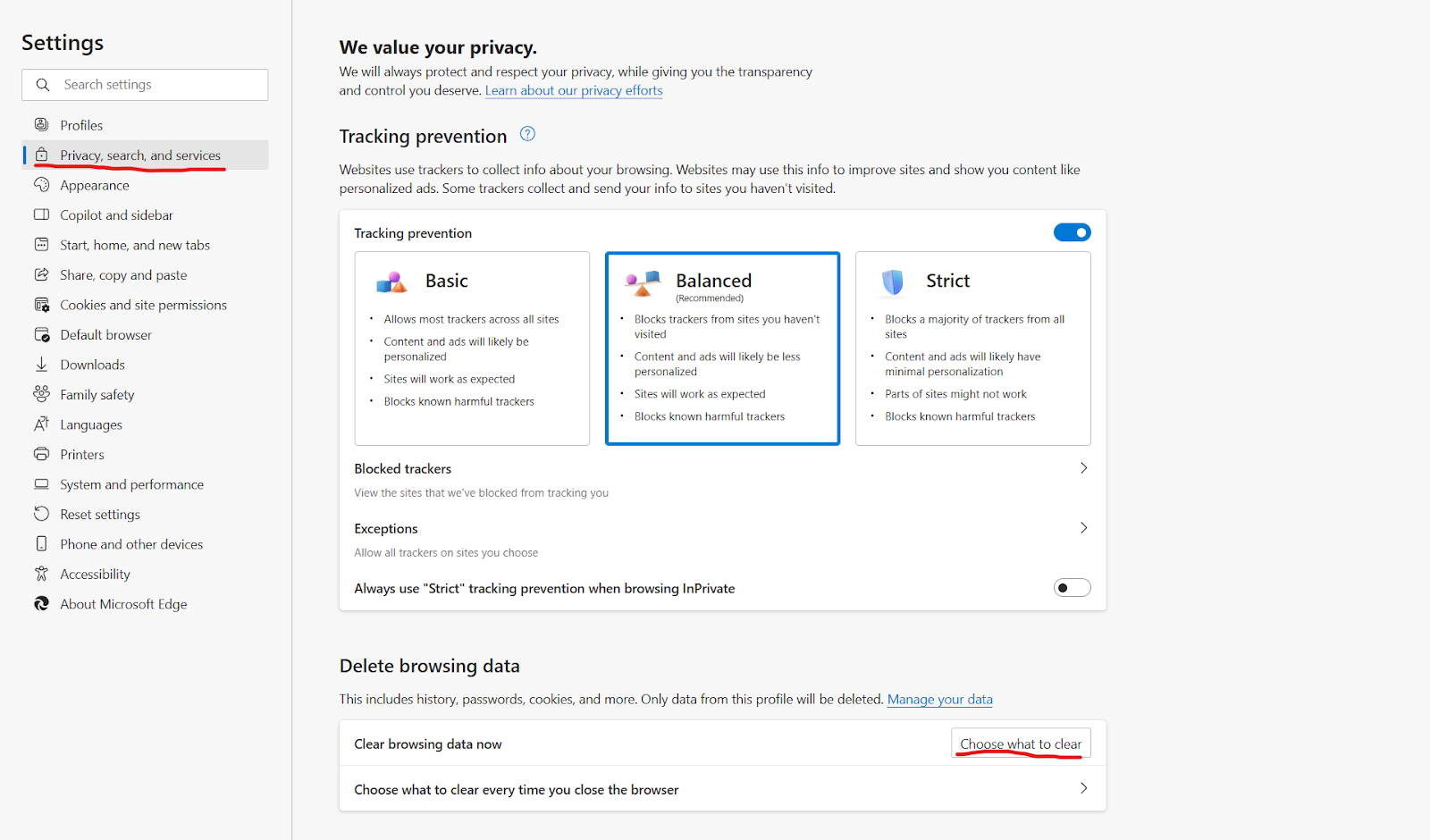
- Clear Browsing Data:
- Click Choose what to clear under Clear browsing data.
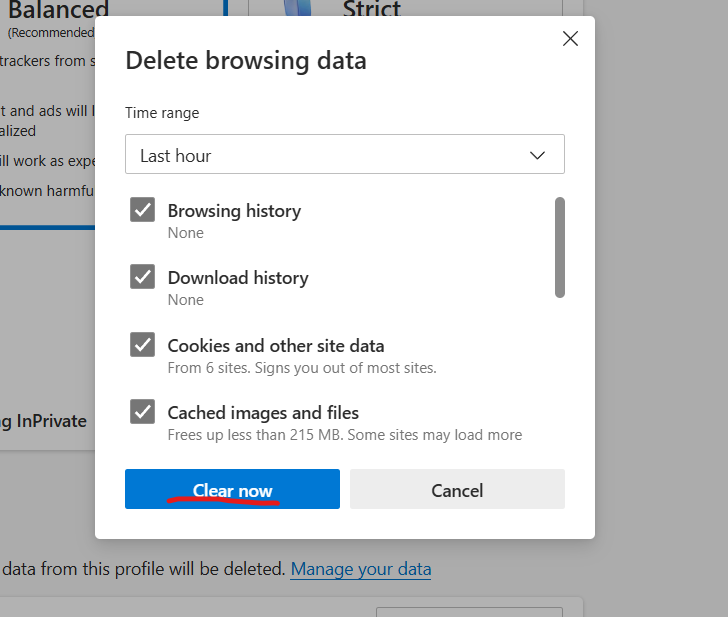
- Select a time range and ensure Cookies and other site data and Cached images and files are checked.
- Click Clear now.
Mobile
- Open Edge App: Tap the Edge app icon.
- Access Settings:
- Tap the three dots in the bottom centre (iOS) or top-right corner (Android).
- Select Settings.
- Clear Browsing Data:
- Tap Privacy and security.
- Tap Clear browsing data, ensure Cookies and site data and Cached images and files are checked.
- Tap Clear.
Safari
Desktop (macOS)
- Open Safari: Launch Safari on your Mac.
- Access Preferences:
- Click on Safari in the top menu and select Preferences.
- Go to the Privacy tab.
- Manage Website Data:
- Click Manage Website Data.
- Select the sites whose data you want to remove or click Remove All to clear all cookies and cached content.
- Confirm: Click Remove Now.
Mobile (iOS)
- Open Settings App: Go to your iPhone/iPad settings.
- Safari Settings:
- Scroll down and tap Safari.
- Scroll to Clear History and Website Data and tap it.
- Confirm: Tap Clear History and Data.
By following these steps, you can clear cookies and cache across these popular browsers, ensuring smoother website performance and resolving common browsing issues. Regularly clearing your cookies and cache can keep your browser running efficiently and help maintain your online security.
Frequently Asked Questions
What happens when I clear my browser cookies?
Clearing your browser cookies removes stored data that websites use to remember your login status, preferences, and other details. This can log you out of websites, reset preferences, and may cause slower load times as websites need to reload certain data. However, it can help resolve issues with website functionality and performance.
Will clearing cookies delete my saved passwords?
No, clearing cookies will not delete your saved passwords. Passwords are typically stored separately in the browser’s password manager. If you want to remove saved passwords, you would need to clear your browsing history and saved passwords specifically.
How often should I clear my cookies?
There’s no set rule for how often to clear cookies, but doing so periodically (e.g., every few months) can help maintain your browser’s performance and protect your privacy. If you experience issues with a website, clearing cookies can be a quick fix.
Will clearing cookies affect other websites I use?
Yes, clearing cookies will affect all websites you’ve visited, not just the one causing issues. You’ll be logged out of any sites where you’re signed in, and your site preferences will be reset. If you only want to clear cookies for a specific site, most browsers allow you to manage and delete cookies for individual websites.
A quick heads-up
We use privacy-friendly analytics to see how people enjoy the site. We don't track who you are or your identity. Privacy Policy